
Schema Gallery Documentation
Welcome to the official Schema Gallery documentation. Here you’ll find step-by-step guides, shortcode examples, feature explanations, and screenshots to help you get the most out of your gallery plugin.
Documentation
Getting Started
Welcome to Schema Gallery! This guide will walk you through everything you need to know to create beautiful, SEO-optimized galleries with validated JSON-LD structured data.
Quick Start Guide
Install the Plugin
Download Schema Gallery from the WordPress plugin repository or upload it directly from your WordPress admin panel. A Sample Gallery with three images is created on first install so you can see how everything works — edit it or delete it whenever you like.
Create Your First Gallery
Navigate to Schema Gallery in your WordPress admin menu and click "Add New" to create your first gallery.
Add Images or Videos
Drag and drop as many images as you like, pick images from your Media Library, or add YouTube, Shorts and Vimeo videos (Pro) — then add the metadata for perfect schema markup.
Add It to a Page
Insert the Schema Gallery block in the block editor, or copy the gallery shortcode into any post, page, widget, or page builder.
Dashboard Overview
The Schema Gallery dashboard is your central hub for managing all your galleries and accessing key features.

Dashboard Statistics
Total Galleries
Quick count of all your created galleries
Total Images
Count of all images and videos across all galleries
Pro Status
Your license status and activation state
Import Banner (Pro)
If Schema Gallery finds galleries from NextGEN Gallery or FooGallery on your site, a banner appears below the statistics showing what it found (for example, "NextGEN Gallery: 4 galleries, 120 images"). Click "Open the Importer" to bring them over. The banner only appears when there is something to import — even if those plugins are deactivated, their data is still detected.
Gallery Management Table
Your galleries are displayed in a clean table with the following columns:
| Column | Description |
|---|---|
| ID | Unique gallery identifier |
| Name | Gallery name (clickable to edit) |
| Shortcode | Ready-to-copy shortcode with one-click copy button |
| Created | Date and time the gallery was created |
| Actions | Edit, Duplicate (Pro), or Delete buttons |
Resources & Help
At the bottom of your dashboard, you'll find quick access to:
- Documentation - Comprehensive guides and tutorials
- Pro Features - Discover advanced capabilities
- Pro Version - Manage account, support, and feedback
- Import Galleries (Pro) - Opens the NextGEN / FooGallery importer at any time
Creating Your First Gallery
Creating a gallery in Schema Gallery is quick and straightforward. Follow these steps to get your first gallery up and running.

Step-by-Step Process
1. Start a New Gallery
From your dashboard, click the "Add New" button. You'll be taken to the gallery creation screen.
2. Configure Basic Gallery Settings
At the top of the screen, you'll see three essential fields:
- Gallery Name - Give your gallery a descriptive name (required). This helps you organize multiple galleries.
- Description - Add an optional description for internal organization and SEO purposes.
- Default Sort Order - Choose how images display by default:
- Newest → Oldest (default)
- Oldest → Newest
Want a hand-picked order instead? Turn on Enable Custom Sort in Pro Settings and drag items into place (Pro feature).
Free Version: Columns & Captions
The free version adds two display options to the gallery settings:
- Gallery Columns - Auto (fit to width), or a fixed 2, 3, or 4 columns
- Captions - Show the image title as a caption under each thumbnail
In Pro, columns, titles on thumbnails, and full layout styles are set in Pro Settings instead.
3. Save Your Gallery Information
Click "Create Gallery" to save a new gallery. When editing an existing gallery, the button reads "Update Gallery Info".
4. Next Steps
After saving your gallery information, you can:
- Upload images (one or many at once) or pick them from your Media Library
- Add YouTube, Shorts, or Vimeo videos (Pro)
- Configure Pro Settings for advanced layouts and features
- Manage, reorder, or bulk delete gallery items
- Check your structured data in View Your Schema
- Add the gallery to a page with the block or shortcode
Adding Images and Videos
Schema Gallery supports images, YouTube videos (including Shorts), and Vimeo videos, each with comprehensive metadata fields for perfect schema markup.
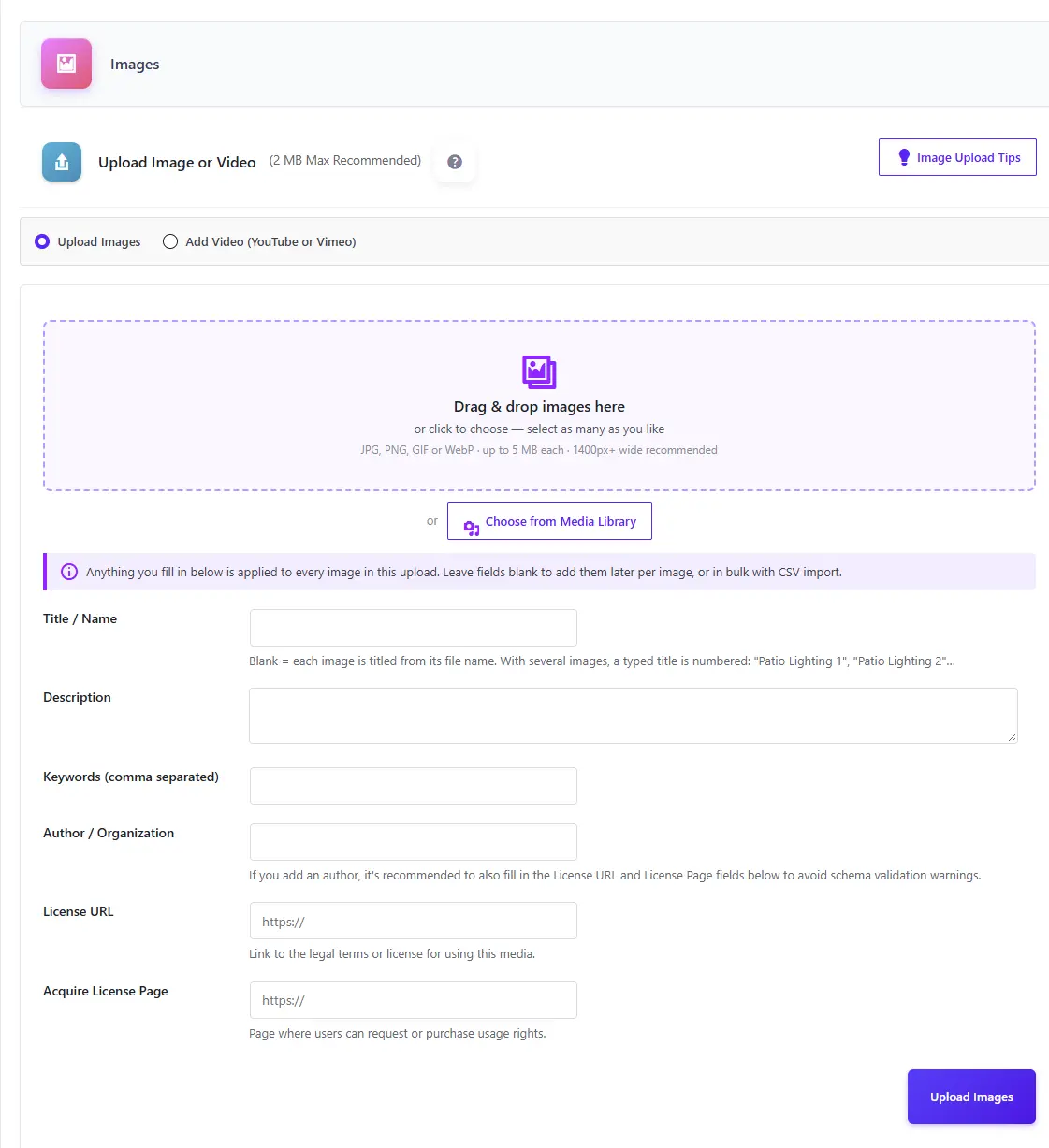
Choose What to Add
The "Upload Image or Video" section has two options:
- Upload Images - Upload one or many images at once
- Add Video (YouTube or Vimeo) - Paste a video link (Pro feature)
Uploading Images (Bulk Upload)
- Drag & drop your images onto the upload area, or click it to choose files. Select as many as you like.
- Each file appears in the upload list with its size, so you can see what's about to go in. Anything that isn't a supported image or is too large is flagged before uploading.
- Pro: fill in any metadata fields you want (see below). Whatever you enter is applied to every image in this upload. Leave fields blank to fill them in later per image, or in bulk with CSV import.
- Click "Upload Images". A progress bar shows each file as it uploads, and the page refreshes when the batch is done.
How Titles Work in a Batch
- Title left blank - Each image is titled from its file name (e.g. "patio_lights-01.jpg" becomes "Patio Lights 01")
- Title typed, one image (Pro) - The image uses your title exactly
- Title typed, several images (Pro) - Titles are numbered: "Patio Lighting 1", "Patio Lighting 2", and so on
Choose from Media Library
Already have the images in WordPress? Click "Choose from Media Library" below the upload area, select one or more images, and click "Add to queue". They join the same upload list as dropped files, so you can mix both in one batch. Available in both the free and Pro versions.
- The image's Media Library title becomes the schema title, and its alt text (or caption, if there's no alt text) becomes the description — fill-in-the-blank, so anything you type yourself takes priority (Pro)
- Schema Gallery makes its own optimized copy for the gallery — your original in the Media Library is never changed or deleted
Metadata Fields
These fields enhance your schema markup and improve SEO:
- Title / Name - A descriptive title (becomes the image alt text and appears in schema markup)
- Description - Detailed description of the image or video (appears in schema markup and lightbox)
- Keywords - Comma-separated keywords for organization and searchability
- Author / Organization - Credit the creator (recommended for schema validation - Google may ignore images without author information). If left blank, your site name is used.
- License URL - Link to usage terms or license information. If left blank, your homepage is used.
- Acquire License Page - URL where users can purchase usage rights. If left blank, your homepage is used.
Location Information (Pro Feature)
When Enable Location Schema is turned on in Pro Settings, a Location Information section appears below the standard metadata fields so you can add geographic data.

Geographic Fields
Add location data that will be included in your schema markup:
- Location Name - Descriptive name (e.g., "Downtown Phoenix", "Grand Canyon")
- Address - Full street address (optional)
- Latitude - Decimal degrees (e.g., 33.4484)
- Longitude - Decimal degrees (e.g., -112.0740)
Location data entered during a bulk upload is applied to every image in that batch.
YouTube, Shorts & Vimeo (Pro Feature)
Select "Add Video (YouTube or Vimeo)", paste the link into the Video URL field, fill in the metadata, and click "Add Video". Schema Gallery downloads the video thumbnail, stores it locally as optimized WebP images, and generates validated VideoObject schema.
Supported Links
| Source | Link Formats |
|---|---|
| YouTube | youtube.com/watch?v=…, youtu.be/… share links, mobile (m.youtube.com) links, /live/ links, and embed links |
| YouTube Shorts | youtube.com/shorts/… — or any regular YouTube link to a Short (Schema Gallery checks with YouTube and recognizes it) |
| Vimeo | vimeo.com/…, unlisted links (vimeo.com/ID/hash), channel, group and showcase links, and player.vimeo.com embed links |
Shorts & Vertical Video
Vertical videos are framed automatically:
- Vertical player - Shorts open in a tall 9:16 player in the lightbox, in any gallery layout
- Shorts layout - The Shorts / Vertical Video (9:16) display style shows every item as a tall portrait tile and plays all videos vertically
- Masonry - Vertical videos show as tall tiles that fit in alongside your photos
- Sharper thumbnails - Shorts use YouTube's native vertical thumbnail when available
Mixed Image & Video Galleries
Images and videos can live in the same gallery. Schema Gallery outputs one connected ImageGallery schema block that lists every image (ImageObject) and video (VideoObject) together — the combination most gallery plugins can't validate.
Vimeo Privacy
Pro Settings Configuration
Pro Settings unlock advanced features and customization options. These settings apply per-gallery, giving you complete control over each gallery's appearance and behavior.

Activation Status
Display Settings
Control the basic display properties of your gallery:
| Setting | Options | Default |
|---|---|---|
| Images per Page | 1-200 | 18 |
| Gallery Display Style | Clean Grid, Masonry, Carousel/Slider, Compact Grid, Shorts / Vertical Video (9:16) | Clean Grid |
| Gallery Columns | 2, 3, 4, or 5 (used by Clean Grid, Masonry, and Shorts layouts) | 3 |
Gallery Display Styles
Clean Grid
Even rows of same-size thumbnails using your column setting
Masonry
Pinterest-style columns that keep each image's natural shape. Vertical videos show as tall tiles.
Carousel/Slider
A horizontal, swipeable row of images
Compact Grid
Smaller thumbnails that fit more items on screen
Shorts / Vertical Video
Tall 9:16 tiles with a vertical video player — built for YouTube Shorts and vertical video. Shows 2 tiles per row on phones.
Visual Customization Toggles
Each toggle switch controls a specific visual aspect. Toggle switches show green when enabled:
Border Thumbnail Radius
Enable rounded corners on thumbnails for a modern look
Toggle Thumbnail Dropshadow
Toggle the drop shadow effect on or off
Enable Custom Sort
Enable drag-and-drop manual sorting in the Gallery Items section
Toggle Thumbnail Border
Toggle the white border on or off for each image
Toggle Thumbnail Border Color
Toggle the border color from white to black
Show Title on Thumbnails
Display title overlay on gallery thumbnails
Show Title in Lightbox
Display image title when viewing in lightbox
Show Caption in Lightbox
Show image description when viewing in lightbox (title and caption can't both be on)
Show Image Counter
Display image counter (e.g., "4 of 12") in the lightbox
Enable Location Schema
Activate geographic location data in your schema markup. Must be enabled for location information to appear in structured data.
Remove "Powered By" Link
Remove the "Powered by Schema Gallery" attribution link from this gallery
Custom Sort Behavior
When Enable Custom Sort is toggled on:
- The Gallery Items section becomes sortable with drag handles (≡) appearing on each item
- You can drag items to reorder them manually
- Auto-Save: Order changes save automatically - no button to click!
- Your custom order overrides the Default Sort Order setting
- Especially useful for Masonry layouts where you want precise control over visual flow
Saving Pro Settings
After making changes to any Pro Settings:
- A blue reminder notice appears at the top: "Remember to click 'Update Pro Settings' below to save your changes."
- Click the purple "Update Pro Settings" button at the bottom to save all changes
Managing Gallery Items
The Gallery Items section provides a comprehensive view of all media in your gallery with easy editing and reordering capabilities.

Items Table Overview
Your gallery items are displayed in a table with:
- Checkbox - Select items for bulk delete (the header checkbox selects all)
- Drag Handle (≡) - Appears when Custom Sort is enabled for reordering (Pro)
- TYPE - Icon showing image or video
- PREVIEW - Thumbnail of the media
- TITLE - Name and description
- SCHEMA - Shows "Needs schema" until the item has both a description and keywords, then "Complete"
- URL - Full path to the media file, or the YouTube/Vimeo link
- ACTIONS - Edit or Delete buttons
Drag-and-Drop Reordering (Pro)
When Custom Sort is enabled in Pro Settings, drag handles (≡) appear on the left side of each item:
1. Enable Custom Sort
Toggle on "Enable Custom Sort" in the Pro Settings panel and click "Update Pro Settings"
2. Grab the Handle
Click and hold the drag handle (≡) on the left side of any item
3. Drag to Position
Move the item up or down to your desired position
4. Auto-Save
Release to drop in place. Your new order saves automatically - no button to click!
Editing and Deleting Items
Each item has two action buttons:
- Edit - Opens the item's metadata for editing (same fields as when adding). For images, you can also replace the image file; for videos, you can replace the video URL. Click "Update Image" or "Replace Video URL" to save, or Cancel to go back.
- Delete - Permanently removes the item and its responsive image copies from the gallery. Files shared with a duplicated gallery are kept until no gallery uses them.
Bulk Delete
Need to clear out a lot of items at once? Available in both the free and Pro versions.
- Tick the checkbox next to each item you want to remove, or tick the checkbox in the table header to select every item on the page
- Click "Delete Selected" — the button shows how many items are selected
- Confirm the prompt. A notice shows how many items were deleted
- Images - The original file, its WebP copies, and its schema data are all removed. Files still used by another gallery (for example, a duplicated one) are kept
- Videos (Pro) - The video is removed from the gallery; the video itself on YouTube or Vimeo is never touched
View Your Schema
Every gallery's edit screen has a View Your Schema panel that shows the exact JSON-LD the gallery puts on your page. Available in both the free and Pro versions.
Using the Panel
- Open any gallery and click "View Your Schema" to expand the panel
- Review the structured data — every image (and video in Pro) is listed in one connected ImageGallery node
- Click "Copy JSON-LD" to copy it to your clipboard
- Click "Test it in Google Rich Results" to run Google's test on the live page that holds the gallery
Import & Export Tools (Pro Feature)
Power tools for bulk editing schema metadata. Perfect for agencies managing large sites or updating metadata across many images at once.

Export to CSV
Use Case: Backup your gallery data or bulk edit metadata in a spreadsheet
- Click the "Export to CSV" button in the Import & Export section
- Your browser downloads a CSV file with all gallery metadata, including the media type (image or video) for each item
- Open in Excel, Google Sheets, or any spreadsheet software
Import from CSV
Use Case: Update schema metadata for multiple images at once
- Export your current gallery data to CSV (creates a backup)
- Edit the metadata fields in your spreadsheet (titles, descriptions, keywords, location data, etc.)
- Click "Import from CSV" and select your modified file
- Rows are matched to existing items by their image or video URL and updated. Blank cells leave the existing value unchanged.
Download Template
Click "Download Template" to get a CSV template showing the proper format and all available fields, with one sample image row and one sample video row. This is the easiest way to understand the structure before creating your own import file.
Best Practices
- Always export before importing to have a backup
- Test imports on a staging site first
- Keep your CSV files organized with version numbers
- Don't change existing file paths
- Use the template as a reference for field names and format
Import Galleries from Other Plugins (Pro Feature)
Switching from NextGEN Gallery or FooGallery? Schema Gallery can bring your existing galleries over in a few clicks, adding validated schema markup to every image along the way.
How to Import
1. Open the Importer
Go to Schema Gallery → Import, click "Open the Importer" on the dashboard banner, or use the Import Galleries card in Resources & Help. Your NextGEN and FooGallery galleries are detected automatically and listed with their image counts — even if those plugins are deactivated.
2. Select Galleries
Tick the galleries you want to bring over, or use the checkbox in the table header to select them all.
3. Import
Click "Import Selected Galleries". Each gallery imports one image at a time with a progress bar, so even very large galleries won't time out. Keep the page open until it finishes.
4. Review
Click "Open gallery" next to each finished import, check the Needs schema items, then add the gallery to your pages with the block or shortcode.
What Gets Imported
| Schema Gallery Field | Comes From |
|---|---|
| Gallery Name & Description | The source gallery's title and description |
| Title | NextGEN alt/title text, or the Media Library title (FooGallery) |
| Description | NextGEN description, or the Media Library caption/description (FooGallery) |
| Keywords | NextGEN tags or FooGallery media tags |
| Date Published | The original image date |
| Order | The source gallery's order (Custom Sort is turned on automatically) |
| Location | GPS coordinates stored in the photo, when present (Location Schema is turned on automatically) |
[schema_gallery id="…"] shortcode for each gallery. FooGallery folder, tag, and video sources aren't imported — only Media Library images. NextGEN albums aren't imported as albums; import each gallery inside the album instead.Adding a Gallery to a Page: Block & Shortcode
There are two ways to put a gallery on your site. Both display the same gallery with the same settings and schema.
Schema Gallery Block (Block Editor)
- In the WordPress block editor, click the + (Add block) button
- Search for "Schema Gallery" and insert the block
- Choose your gallery from the "— Select a gallery —" dropdown. It's also in the block settings sidebar under Gallery, so you can switch galleries any time
- A live preview of the gallery appears right in the editor
Your Gallery Shortcode
For the Classic Editor, widgets, and page builders, use the shortcode. On the dashboard, each gallery displays its shortcode:
[schema_gallery id="1"]The number is your gallery's unique ID.
Quick Copy
Click the "Copy" button next to any shortcode to instantly copy it to your clipboard. The shortcode is also shown with a Copy button at the top of each gallery's edit screen.
Where to Use Shortcodes
- WordPress posts and pages (Classic Editor, or a Shortcode block in Gutenberg)
- Text widgets in sidebars or footers
- Page builder elements (Divi, Elementor, Bricks, Beaver Builder)
- Template files using
do_shortcode()
Universal Compatibility
WordPress Core
Native block for Gutenberg, shortcode for the Classic Editor
Page Builders
Full compatibility with Divi, Elementor, and more
Any Theme
Works with any properly coded theme
Frequently Asked Questions
Do I need Pro for basic galleries?
No! The free version supports unlimited galleries and images, bulk image upload, Media Library picking, the Gutenberg block, the View Your Schema panel, bulk delete, captions, a 2/3/4 column choice, and full schema markup. Pro adds video (YouTube, Shorts, and Vimeo), batch schema fields on upload, gallery import from NextGEN and FooGallery, location schema, five layouts, CSV import/export, custom sort, and additional customization options.
What structured data does Schema Gallery provide?
Schema Gallery generates validated JSON-LD markup for:
- ImageGallery - One connected node for each gallery, listing all of its media
- ImageObject - For all images
- VideoObject - For YouTube (including Shorts) and Vimeo videos (Pro)
- Place/Location data - Pro feature for geographic information
All markup is validated to pass Google's Rich Results Test with zero errors. You can see the exact output in View Your Schema.
Can I upload many images at once?
Yes. Drag and drop as many images as you like into the upload area, or pick them from the Media Library. In the free version, you add schema details to each image afterward. In Pro, anything you type into the metadata fields is applied to the whole batch, and each image can still be fine-tuned afterward.
Does adding an image from the Media Library change the original?
No. Schema Gallery makes its own optimized copy for the gallery. Your Media Library image is never edited or deleted, even if you remove it from the gallery.
Is there a Gutenberg block?
Yes, in both the free and Pro versions. Search for "Schema Gallery" in the block inserter, pick your gallery, and see a live preview. See Block & Shortcode.
Does it work with Yoast SEO or Rank Math?
Yes. Schema Gallery adds its own separate schema block for each gallery. It doesn't replace or change the schema that Yoast, Rank Math, or other SEO plugins output for your page.
Can I delete a lot of images at once?
Yes. Tick the items you want (or use the header checkbox to select all) and click "Delete Selected". See Bulk Delete.
Do YouTube Shorts work?
Yes (Pro). Paste the Shorts link — or a regular YouTube link to a Short — and it's recognized automatically. Shorts play in a vertical player, and the Shorts / Vertical Video layout shows tall 9:16 tiles.
Why won't my Vimeo video add?
Vimeo only shares thumbnails for videos that allow embedding. Check the video's privacy settings on Vimeo and make sure embedding is allowed, then try again.
Can I move my galleries from NextGEN Gallery or FooGallery?
Yes (Pro). Go to Schema Gallery → Import, select your galleries, and click Import. Images, titles, descriptions, tags, dates, and order come across, and every image gets validated schema. Your original galleries are never changed. See Import from Other Plugins.
What is the Import/Export feature for?
The Import/Export tools (Pro) are designed for bulk editing schema metadata within Schema Gallery. You can export your gallery data to CSV, edit metadata fields like titles, descriptions, keywords, and location data in a spreadsheet, then import the changes back. This is perfect for updating large galleries efficiently.
How does Custom Sort work?
When you enable Custom Sort in Pro Settings, drag handles appear on each gallery item. You can click and drag items to reorder them. The best part: changes save automatically when you drop an item in its new position - no save button needed!
What PHP version do I need?
PHP 8.1 or newer for both the free and Pro versions. Older PHP versions no longer receive security updates, so most hosts let you switch in your control panel. You can check your current version under Tools → Site Health → Info → Server.
Does this work with my theme?
Yes! Schema Gallery works with any properly coded theme — use the block in the block editor, or the shortcode in the Classic Editor and all major page builders including Divi, Elementor, Bricks, and Beaver Builder.
How does Schema Gallery help with SEO?
Schema Gallery provides validated structured data that helps search engines understand your images and videos. Benefits include:
- Rich results in Google search
- Better image search rankings
- Enhanced discoverability by AI search engines
- Improved click-through rates from search
- Location-based search optimization (Pro feature)
Can I use Schema Gallery on multiple sites?
The free version can be used on unlimited sites. Pro licenses are available for:
- Pro: 1 site ($69/year)
- Freelancers: 5 sites ($129/year)
- Developers: Unlimited sites ($199/year)
What makes Schema Gallery different from other gallery plugins?
Schema Gallery is a WordPress gallery plugin that provides zero-error schema validation verified against Google's Rich Results Test for both video and images mixed on a page. While other gallery plugins may add some schema markup, Schema Gallery is built specifically for perfect structured data implementation.
Support & Resources
Getting Help
We're here to help you succeed with Schema Gallery:
- Documentation - This comprehensive guide
- Support Forum - Community support for free users (coming soon)
- Priority Support - Direct email support for Pro users
- Suggestions - Share your feature ideas with us
Upgrade to Pro
Unlock all features including:
YouTube, Shorts & Vimeo
Video galleries with full VideoObject schema
5 Gallery Layouts
Clean Grid, Masonry, Carousel, Compact, Shorts
Gallery Import
Move NextGEN and FooGallery galleries over in a few clicks
Location Schema
Add geographic data to your images
CSV Import & Export
Bulk edit metadata across whole galleries
Custom Sorting
Drag-and-drop image reordering with auto-save
Gallery Duplication
Clone galleries with all settings and schema data
Priority Support
Direct email support from our team